OBD2 Scanners for Windows: Choosing a Compatible Adapter and Software
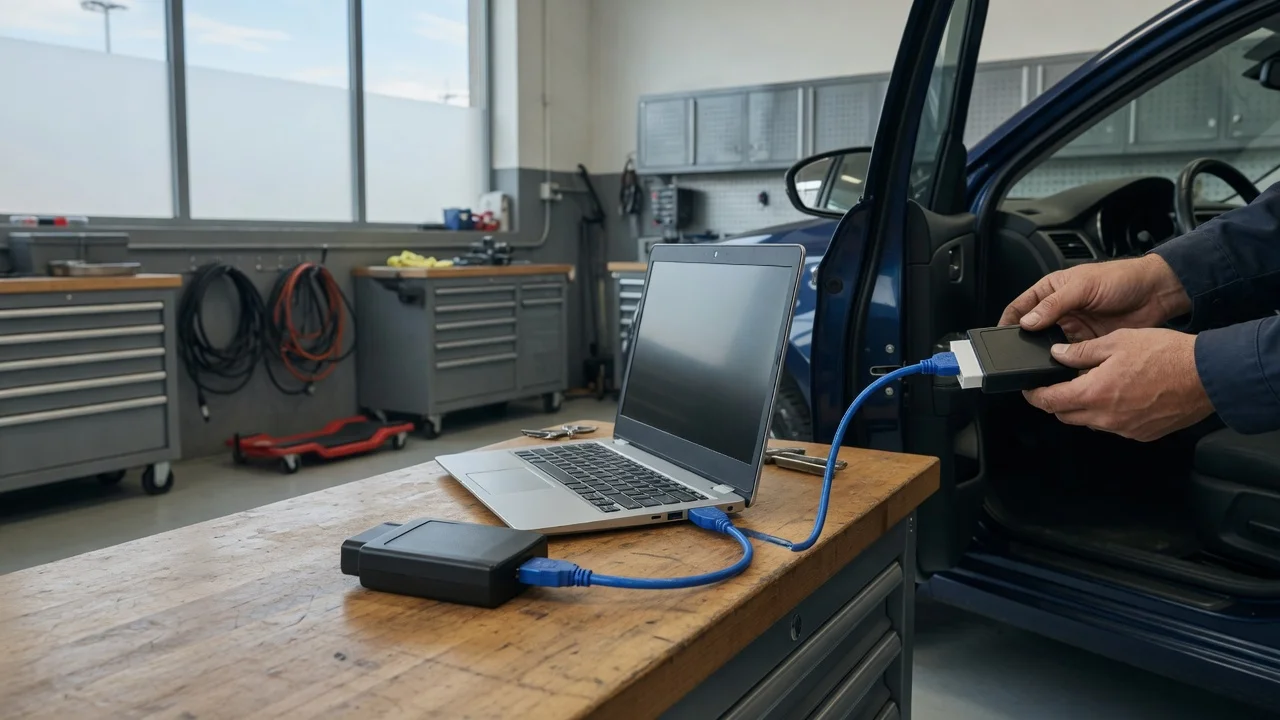
Answer: A Windows OBD2 setup is an adapter plus software, not one product
An OBD2 scanner for Windows generally means two things working together: a hardware adapter that plugs into the vehicle's OBD2 port and Windows software that reads the data through that adapter. Some adapters are sold as bundles with their own Windows application, while others are hardware-only and rely on third-party diagnostic software. The right choice depends mainly on the vehicle's model year and market, whether you need basic code reading or live data, and whether the adapter uses a connection type your Windows computer can support.
Know the connection type before buying
OBD2 adapters for Windows are commonly available as USB, Bluetooth, or Wi-Fi. USB adapters are the most direct option for a laptop because they do not depend on wireless pairing. Bluetooth and Wi-Fi adapters can work with a Windows laptop, but you need to confirm that the adapter's connection method is supported by both the laptop and the software. Older or cheaper Bluetooth adapters may pair only with specific mobile-style profiles, which can make a Windows connection less straightforward than it appears from the adapter's description.
Check the vehicle protocol, model year, and market
OBD2 compatibility is tied to the vehicle's applicable model year, market, and powertrain. In the United States, OBD2 became standard for many gasoline vehicles from the 1996 model year, but the exact applicability can differ by vehicle and by whether it was built for a different market. Diesel and light-truck coverage can also vary by year and market. Before committing to a Windows setup, check that the adapter and software list support for your specific vehicle rather than assuming all OBD2 devices cover every OBD2 port.
What to verify before you buy
Confirm the adapter's connection type and that your Windows version has the required driver or pairing support. Confirm the software runs on your version of Windows and supports the adapter model, not just OBD2 in general. Check the vehicle's OBD2 protocol eligibility by model year and market. Find out whether the software requires a paid license, a subscription, or an unlocked version for advanced features. Check whether the advertised price is for hardware only, software only, or a complete kit.
Total cost is more than the adapter price
A low-cost adapter may work only with one basic application, while a more capable Windows software package can require a separate paid license or yearly update fee. Some advanced diagnostic programs unlock vehicle-specific modules only with a higher-tier license. Because advertised prices can reflect new retail listings rather than completed transactions, compare what is actually included: adapter, software license, cables, and any add-on costs such as manufacturer-specific coverage.
Compare setups by use case, not by adapter size or brand claims
Use case|More suitable choice|Main trade-off; Basic check-engine code reading|Low-cost OBD2 adapter with software that reads stored codes|Limited live data and fewer manufacturer-specific options; Live data and logging on a laptop|USB adapter paired with a Windows diagnostic application|Usually more involved setup and higher software cost; Wireless convenience|Bluetooth or Wi-Fi adapter|Windows pairing and support can be less consistent than mobile use; Professional or model-specific work|Software with expanded licensed coverage|Higher total cost and yearly fees
First-time Windows setup: isolate the likely failure points
If you are building a Windows setup rather than buying a matched kit, start with the adapter driver and a small software test before relying on the tool for diagnosis. A USB adapter may require a specific driver installed before the software can see the vehicle. Bluetooth adapters may pair at the Windows level but still fail to appear in the diagnostic application if the software expects a different connection type. Confirm that the software recognizes the adapter and reads at least a basic value from the vehicle before treating the setup as working.
Do not expect every OBD2 device to read every system
An OBD2 scanner for Windows will normally read emissions-related diagnostic trouble codes and standardized powertrain data on a supported vehicle. It is a separate question whether the software can read airbag, ABS, transmission, body control, or other manufacturer-specific modules. Those features usually depend on the software license and vehicle coverage rather than the adapter alone. Treat expanded module access as a paid or vehicle-specific capability, not a guaranteed part of the base OBD2 purchase.
Summary for a practical decision
Choose the software first if you intend to use expanded diagnostics, then select an adapter the software explicitly supports. Choose the adapter first if you want a simple laptop code reader and are willing to stay within its supported connection and vehicle range. In both cases, verify the vehicle's protocol eligibility, the total cost of software access, and whether the connection method is proven on Windows. The evidence supplied here does not include current retailer prices or test results, so check the current listing and software compatibility details for the specific adapter you are considering.