How to Reset or Restart a Car Infotainment System Safely
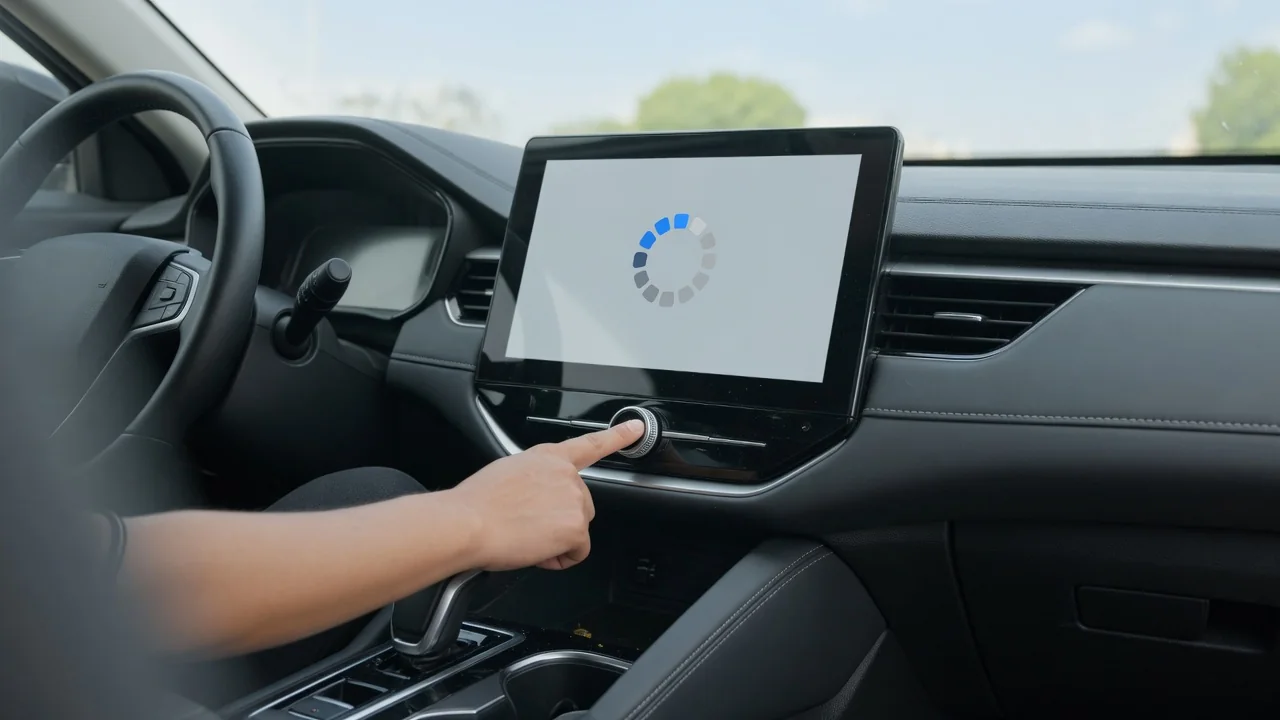
When a touchscreen display freezes, goes black, or drops Apple CarPlay mid-drive, knowing how to reset the infotainment system can save a trip to the dealer. The right approach depends on the head unit in your vehicle, whether it's a Chevy, Honda, Volvo, Mazda, or another brand. This guide explains how to restart, reboot, or factory reset a car infotainment system safely and when the problem needs a professional diagnosis.
Restart, Reboot, or Factory Reset: Choosing the Right Fix for a Frozen Screen
A soft reset, often called a restart or reboot, closes the head unit's software and loads it again without touching stored data. A hard reset or factory data reset goes further. It erases your settings and returns the system to its out-of-the-box state. Try the least disruptive option first. A restart can clear a frozen or black screen, touch input that stops responding, Bluetooth pairing that keeps dropping, Android Auto disconnects, or missing audio. It won't repair every fault, though.
Many vehicles offer one of three approaches. You can hold the power button or volume knob, fully shut the vehicle down with the doors closed so the modules go to sleep, or choose a reset in the settings menu. The button, sequence, and timing vary by make, model, and year, so check the owner's manual or the manufacturer's official owner resources first. Only reset while safely parked. A factory reset typically removes paired phones, saved destinations, presets, and profiles, so write those down first.
Restarting the Infotainment System in Chevrolet, GMC, and Cadillac Vehicles
Chevrolet, GMC, Cadillac, and Buick vehicles have used several infotainment generations. The right way to reboot a GMC Sierra, Chevy Silverado, Equinox, Traverse, or Trax depends on the model year and the system version. The version often appears on a software information screen in the settings menu. On many GM systems, you force a restart by holding the power or volume control. Check the manual for the exact control and how long to hold it rather than guessing.
Resetting a Chevy or GMC infotainment system to factory condition is a separate step. The option, often labeled something like restore settings or factory reset, usually sits within the system settings menus. It clears paired devices, contacts, favorites, and personal data. Owners of a Cadillac Escalade or other Cadillac models should expect the same split between restarting and resetting. If the screen keeps freezing after repeated restarts, it may need a software update, or there may be a hardware fault that a dealer should diagnose.
How to Restart a Honda Infotainment System in the Accord, Civic, and CR-V
Honda display audio units differ across Accord, Civic, CR-V, and Pilot model years, and Acura models such as the MDX have their own interfaces. Identify your generation before following any steps, because a method for one year may not apply to another. On many Honda units, you can force a restart by holding the audio power control until the screen goes dark and reloads. Confirm the exact button and timing in your owner's manual before you reboot a Honda infotainment system this way.
A factory data reset, found in the settings menu on many Honda systems, is different from a restart. It erases stored information such as paired phones, contacts, navigation history, and audio preferences. Afterward, you'll need to pair your phones again and reconnect Apple CarPlay or Android Auto. Some Honda audio units may ask for an anti-theft code after losing power. Find that code in your vehicle documents or get it from the dealer before a technician does any work involving the battery.
Resetting the Volvo Sensus or Google-Based Center Display in the XC60 and XC90
The Volvo XC60 and XC90, along with the XC40, have used different center display systems depending on the year, including Sensus screens and newer Google-based software. That changes how a restart works. Many Volvo center displays can be forced to restart by holding a physical button near the screen. Confirm which button and how long to hold it in your manual or Volvo's official owner resources. If a Volvo infotainment reset isn't working, you may be using the method for a different system generation.
Restarting the display simply reloads its software. A factory reset from the settings menu erases driver profiles, linked accounts, apps, and saved preferences. Try a restart first and save the full reset for software trouble that won't go away. After a reboot, wait for the system to finish loading before you drive, because the camera view and other functions may run through the same screen. Contact a Volvo retailer if the display freezes repeatedly, reboots on its own, or shows update errors.
Infotainment Reset Options for Volkswagen, Hyundai, Kia, Nissan, and Toyota
Volkswagen, Hyundai, Kia, Nissan, and Toyota each use several head-unit generations, so identify your system version before following instructions for a VW Atlas, a Nissan Rogue, or any other model. The same goes for Lexus, Subaru, and BMW systems. Common patterns include holding the power or volume knob to force a reboot or picking a reset or initialize option in the system settings. The exact sequence varies, so treat instructions written for another model year as a rough guide only.
A factory reset or initialization on a Toyota infotainment system clears personal data such as phonebooks, Bluetooth pairing records, and saved locations. It may also affect links to connected services. Write down your settings beforehand and be ready to sign back into apps and accounts. The same caution applies when you factory reset a VW infotainment system or initialize a Hyundai or Kia unit. If the on-screen menus don't match what you expected, check the owner's manual, the brand's official owner site, or a dealer.
Resetting Mazda Connect Infotainment, Including the Mazda CX-5
Mazda Connect has gone through several hardware and software versions, so the steps to reset the infotainment system in a Mazda CX-5 can vary between model years. Some versions let you force a restart by pressing a combination of the controller knob and buttons, while others work differently. Confirm the exact method in your owner's manual before trying it. Don't copy a combination from a forum post about another generation, because the wrong inputs may just open unrelated menus.
The factory reset option in the Mazda Connect settings erases paired phones, favorites, contacts, and custom preferences. Note which devices were paired and which stations or destinations you saved so you can restore them quickly. If the display keeps rebooting, lags badly, or registers ghost touches that nobody made, repeated resets are unlikely to fix it. Those symptoms may call for a software update or a professional inspection of the head unit and its connections.
When a Reset Does Not Fix the Infotainment System
Some symptoms mean a reset isn't enough. Watch for repeated boot loops, a screen that stays black after every restart, a missing backup camera image, or lost audio warnings and chimes, which can affect safety alerts. Disconnecting the 12-volt battery is not a recommended do-it-yourself fix. It can erase settings, set fault codes, require relearn procedures, or trigger requests for security codes. Leave any battery disconnection to a qualified technician who can handle those effects.
Clear observations help a dealer find the cause faster. Note when the fault happens, such as at startup or after a phone call. Record whether a phone was connected through Bluetooth, Apple CarPlay, or Android Auto, and write down any on-screen messages. A photo of an error screen, taken while parked, is also useful. Software updates, connection problems, and hardware faults need a professional diagnosis, and a technician can check for available updates or service bulletins for your specific vehicle.