How to Get Wi-Fi and Internet in Your Car for a Road Trip
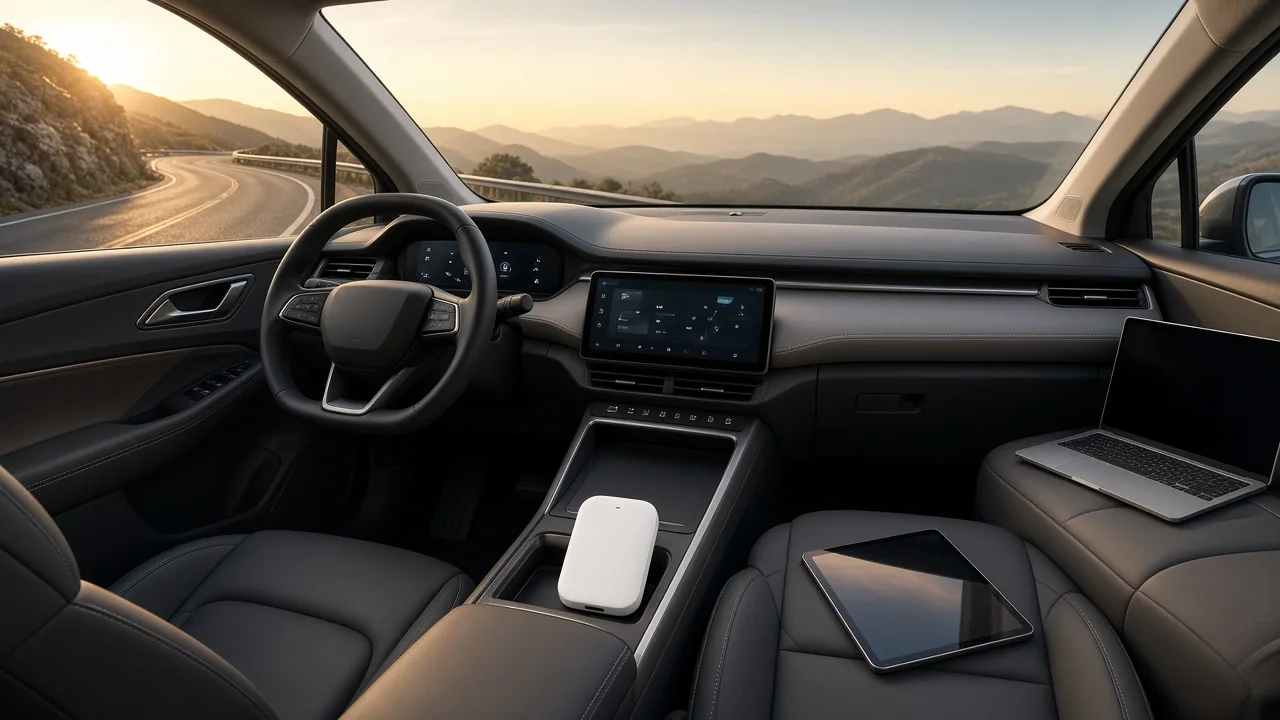
Staying connected during a road trip is no longer a luxury, but bringing the internet into a moving car raises practical questions about coverage, data, and safety. The right setup depends on your route, your existing devices, and your mobile plan. In-car connectivity usually means creating a local Wi-Fi network that links your devices to a cellular signal, then managing that data carefully so navigation, music, and communication keep working from departure to destination.
How Internet Access in a Moving Car Actually Works
In-car Wi-Fi is simply a short-range wireless link between your phone, tablet, or laptop and a device that has a cellular connection. That device could be a built-in modem in the vehicle, a phone sharing its connection, or a standalone portable hotspot. The Wi-Fi part only carries data a few feet; the real internet access comes from the same kind of tower-based cellular network your phone uses, and its performance depends on the carrier's coverage along your route.
Speeds will change as you move because the hotspot constantly hands off from one cell tower to the next. In tunnels, deep valleys, or far from any tower, the link can drop entirely even though the Wi-Fi icon still shows full bars. The type of hotspot does not change this physical limit. It only determines how many devices can join, how the plan is billed, and which network name appears on your screen.
Using Your Vehicle's Built-In Wi-Fi Hotspot
Many newer vehicles include a factory hotspot, but not every trim level or model year has one. Check the owner's manual or infotainment menu for options like 'Wi-Fi hotspot,' 'connected services,' or a data icon. The automaker's companion app may also show whether the feature is available and whether a subscription is active. Some cars need a separate data plan purchased through the manufacturer or a partner carrier before the hotspot will turn on.
If the hotspot exists, you can usually find the network name and password in the vehicle's connectivity settings. Change the default password to something unique before you travel. Be aware that many built-in hotspots only operate when the ignition is on or in accessory mode, which can drain the battery if parked for long periods. Confirm this behavior in the manual so you aren't surprised at a rest stop when the connection disappears.
Sharing a Smartphone Connection With Passengers
A smartphone personal hotspot turns the phone into a miniature router, sharing its cellular data over Wi-Fi, USB, or Bluetooth. Wi-Fi is usually simplest for passengers, while USB tethering can be more stable and charges the phone at the same time. Bluetooth uses the least power but offers slower speeds and works best for a single device. The exact menu labels vary by phone, but the feature is usually found under 'Hotspot,' 'Tethering,' or 'Personal Hotspot.'
Before relying on this method, check your mobile plan carefully. Some plans include hotspot data in the normal allowance, while others have a separate cap or charge extra once you enable the feature. A phone running a hotspot also generates noticeable heat and drains the battery quickly, so keep it plugged in, out of direct sunlight, and in a spot with airflow. Remember that the phone must stay in the car and remain powered on for everyone else to stay online.
Portable Hotspot Devices and Travel Data Plans
A standalone portable hotspot is a small, battery-powered device that connects to a cellular network and creates its own Wi-Fi network. It has no screen, keyboard, or other phone functions, which frees up the driver's or a passenger's phone for calls, navigation, and photos. This can be useful when a phone plan does not include hotspot data or when several people want a dedicated connection without draining a single device.
You will need a data-only SIM or a plan designed for these devices, and you should verify that the carrier has solid coverage across your route. Most portable hotspots charge through a USB port or 12-volt car adapter, so plan to recharge during long drives or when the vehicle is off. Place the hotspot near a window or in a location with good reception, but secure it so it doesn't slide around, block the driver's view, or interfere with any controls.
Planning Around Coverage Gaps on Rural and Remote Routes
Before leaving, review the carrier's coverage map for the entire route, especially through national parks, mountain passes, and desert stretches. Coverage maps often show only outdoor signal strength and can be optimistic, so expect slower speeds or dead zones in valleys and heavily forested areas. If the route crosses several states or remote regions, check each carrier you might use rather than assuming a nationwide blanket of service.
When coverage disappears, switching from a built-in hotspot to a phone hotspot or portable device won't help if all the devices use the same carrier and no tower is in range. That is why offline preparation matters: download maps, playlists, podcasts, and videos while you still have a strong signal. Also test your phone's offline navigation and know how to reach emergency services without data, such as by voice call where a cellular signal exists but data does not.
Managing Data Use So Your Plan Lasts the Whole Trip
Video streaming is the fastest way to burn through a data allowance. Even a few hours of high-definition video can consume several gigabytes. Lower the streaming quality on passenger devices, or download content over Wi-Fi at home before the trip. Music and podcast apps often have offline modes that use no data while driving, and navigation apps may let you download map regions in advance.
While on the road, pause automatic app updates, cloud photo backups, and large file downloads on every connected device. You can check data use in the phone's settings, the hotspot's companion app, or the vehicle's connected-services screen. Keep in mind that many plans reduce speeds after a certain amount of use in a billing cycle, so review the plan terms before leaving to avoid a surprise slowdown halfway through the trip.
Keeping Connected Road Trips Safe and Secure
Set up the hotspot, navigation route, and passenger entertainment before the car starts moving. Changing a Wi-Fi password, pairing a tablet, or scrolling through a playlist while driving is a dangerous distraction. If the connection drops mid-trip, pull over safely or ask a passenger to handle the settings. A strong, unique hotspot password is also important; change it from the default so nearby strangers can't join and use your data.
Exercise extra caution with public Wi-Fi at rest stops, hotels, and restaurants. These networks are often unencrypted, and entering banking or email credentials on them can expose your accounts. Use your own hotspot for sensitive tasks even if it uses cellular data. Finally, route charging cables and mount devices so they don't dangle near pedals, cover airbags, or become projectiles in a sudden stop. A little planning keeps the internet useful without making the car unsafe.