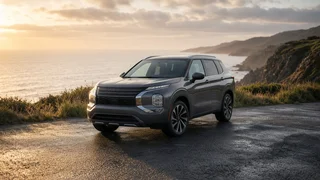
How to Connect Bluetooth in a Mitsubishi ASX
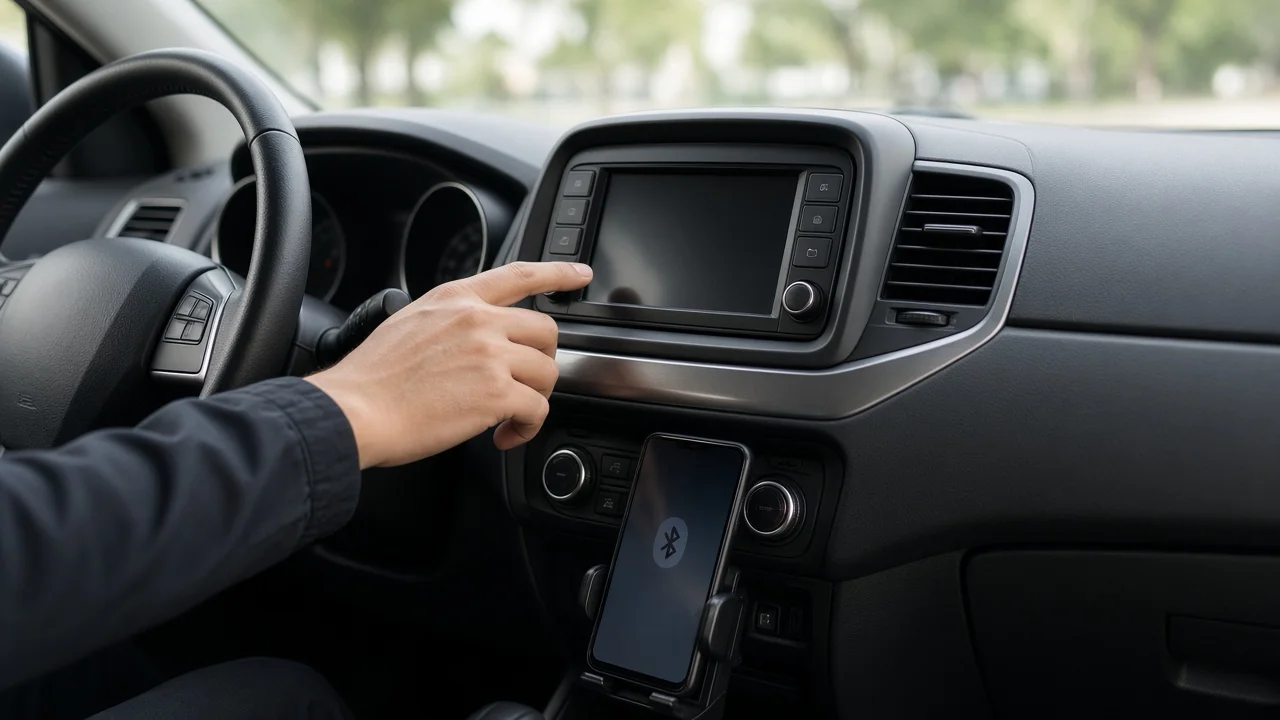
A Mitsubishi ASX Bluetooth connection lets you route phone calls and, on many versions, streamed audio through the vehicle’s audio system without a cable. The process requires putting the ASX head unit into pairing mode, then confirming the link from the phone’s Bluetooth menu. Exact menu names and button sequences differ by model year and display type, so the owner’s manual remains the best reference for your specific interface. Once paired, the phone usually reconnects automatically on later drives.
Direct answer
The essential answer is that connecting Bluetooth in a Mitsubishi ASX uses a standard device pairing sequence: the vehicle becomes discoverable, the phone scans for it, and both sides confirm a matching code. On color-display ASX models, this typically starts in the phone or settings menu. On versions with a voice-recognition button, the same registration mode may open through spoken commands. The system is not always visible to nearby phones, so it must be placed into discovery mode before the phone can find it.
Vehicle integration changes how the connection behaves after pairing. Some ASX head units register a phone for calling and audio playback as one profile, while others treat them separately. The phone’s connection settings should show Bluetooth active and the ASX listed under saved devices. Software compatibility can affect whether a newer phone still shares call history and music information, even when the basic wireless link remains stable. Checking the phone’s paired-device options often resolves these profile gaps.
How to proceed
Begin with the vehicle stationary and the ignition in ACC or ON. Open the display’s phone or settings menu and select the option to add a new device. The system may display a passkey or ask you to confirm a number. On the phone, open Bluetooth settings, scan for nearby devices, and choose the ASX when its name appears. If the interface adapter requires confirmation, verify the code shown on the vehicle screen matches the phone before accepting the connection.
After the initial pairing, complete the connection settings on both sides. Allow contact and call-log access when the phone prompts, because that permission controls hands-free functions and steering wheel interface commands. Test the link by making a short call and, when supported, playing audio through the vehicle speakers. If the ASX does not appear during scanning, delete the previous pairing from the phone and repeat discovery. Always perform this setup while parked, because reading confirmation codes while driving creates a distraction hazard.