How to Clean Up Old Devices in a Car's Bluetooth Menu
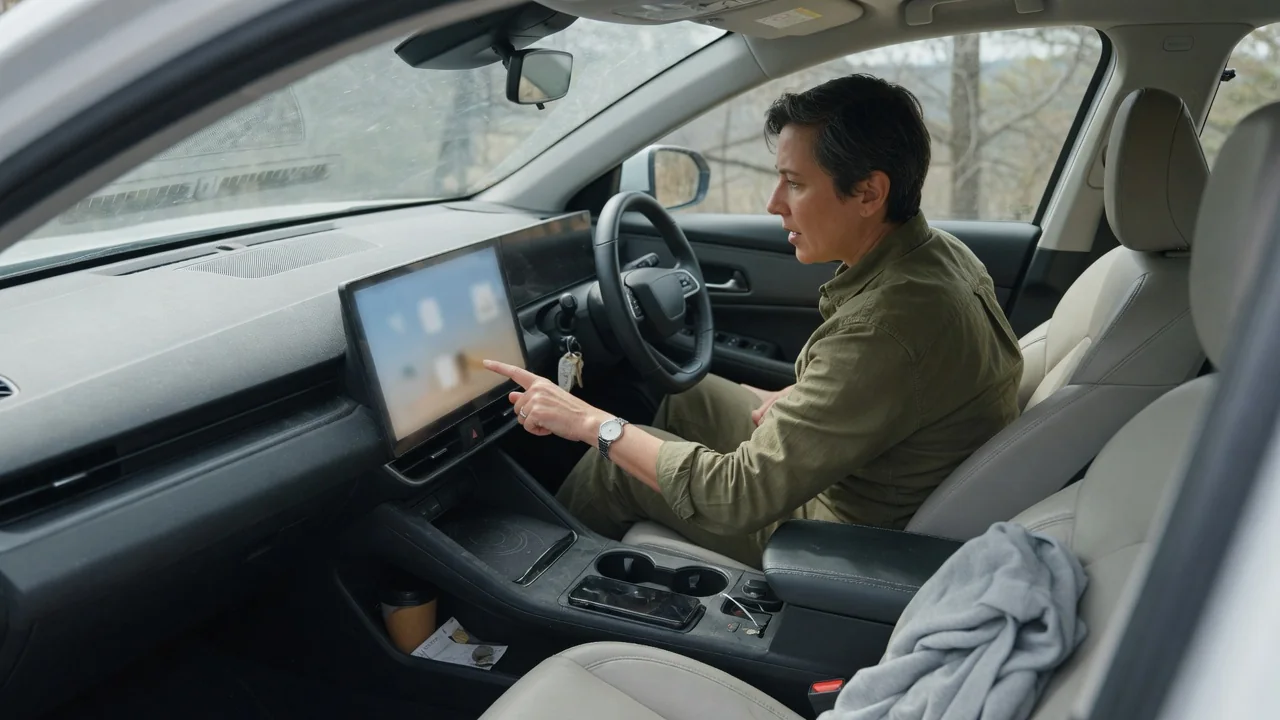
A car's infotainment system remembers every phone that has ever paired with it, and that memory can cause trouble. Old entries compete for connections, confuse passengers, and may hold contacts or call history from people who no longer use the vehicle. Learning how to clean up old devices in a car's Bluetooth menu takes only a few minutes and makes daily connections more predictable.
Review list
Start with the vehicle parked and the infotainment system fully awake. The paired device list usually sits under a settings, phone, or connections menu, though the exact path differs between manufacturers and even between model years of the same vehicle. Some systems show a simple list of names, while others separate phones from audio players or display icons indicating whether each device handles calls, media, or both. The owner's manual describes where the list lives if it is not obvious.
Read each entry carefully before removing anything. Names such as a former owner's phone, a rental customer's handset, a friend's tablet, or a generic model number with no personal label are common leftovers. Duplicate entries often appear when someone replaced a phone but kept the same device name. Note which device is currently connected, which ones you still use, and which ones nobody recognizes. On a used vehicle, it is reasonable to assume that every entry belongs to someone else.
Delete unused
Selecting a device in the list normally reveals an option labeled delete, remove, forget, or unpair. Wording and layout vary, and some systems ask for confirmation before erasing the entry. Many vehicles block this menu while moving, which is another reason to do the job while parked. Removing a device typically clears its pairing key, so that phone can no longer connect automatically, and on many systems it also clears the contacts and call logs synced from that phone.
Whether synced data disappears with the pairing depends on the system, so check afterward. Open the phonebook, recent calls, and message screens to see whether old names or numbers still appear. Some vehicles store downloaded contacts separately and offer a dedicated option to clear them. Also remove the car from the phone's own Bluetooth settings if that phone is still around, since a pairing record left on only one side can cause failed connection attempts or repeated pairing prompts later.
Pair preferred phone
With the clutter gone, pair the phone you actually use as a fresh connection. Putting the car into pairing mode and selecting it from the phone's Bluetooth menu usually produces a matching code on both screens, which you confirm on each. The phone will then ask whether to share contacts, call history, and messages. Granting those permissions enables hands-free dialing by name, but declining them is a valid choice if the car is shared, borrowed, or leased.
Many systems let you assign a priority or favorite device, which decides which phone connects first when two paired handsets are in the cabin together. Where that setting exists, placing the main driver's phone at the top prevents the car from grabbing a passenger's phone and routing calls through the wrong device. Other systems simply connect to whichever phone was used most recently, or to the first one they detect, so the behavior is worth testing with both phones present.
Everyday Use and Observations
A tidy list shows its value over the following days. The preferred phone should connect shortly after startup without prompts, calls should ring through the car's speakers, and media should resume from the expected device. If a household has two drivers, watch what happens when both get in together. A car that connects to the wrong phone, or that splits calls to one handset and music to another, is usually following its priority rules rather than malfunctioning.
Give each remaining device a clear name on the phone itself, such as the owner's first name plus the phone type, so entries are easy to tell apart next time. Keep an eye on occasional users as well. A relative who paired once for a road trip, or a valet or shop that connected a device during service, can leave a new entry behind. Glancing at the list every few months keeps it short and makes unfamiliar names stand out immediately.
Limits and Next Steps
Deleting individual devices does not always remove everything. Smartphone projection systems, built-in Wi-Fi hotspots, connected-service accounts, saved navigation destinations, and garage door opener codes are commonly stored elsewhere in the system. Before selling, trading in, or returning a leased vehicle, a full factory reset of the infotainment unit is the more thorough choice where the vehicle offers one. The reset process, and what it does and does not erase, varies by manufacturer and should be confirmed in the vehicle's documentation.
Some problems fall outside a simple cleanup. A device that reappears after deletion, a list that will not open, a system that says its memory is full with few entries shown, or pairing that fails repeatedly with a phone that works elsewhere may point to a software issue. Checking for an infotainment update, restarting the phone, and removing the pairing on both sides are sensible first steps. If the behavior continues, a dealer or qualified technician can examine the system with vehicle-specific information.