Foxwell Diagnostic Scanners: How to Choose a Model
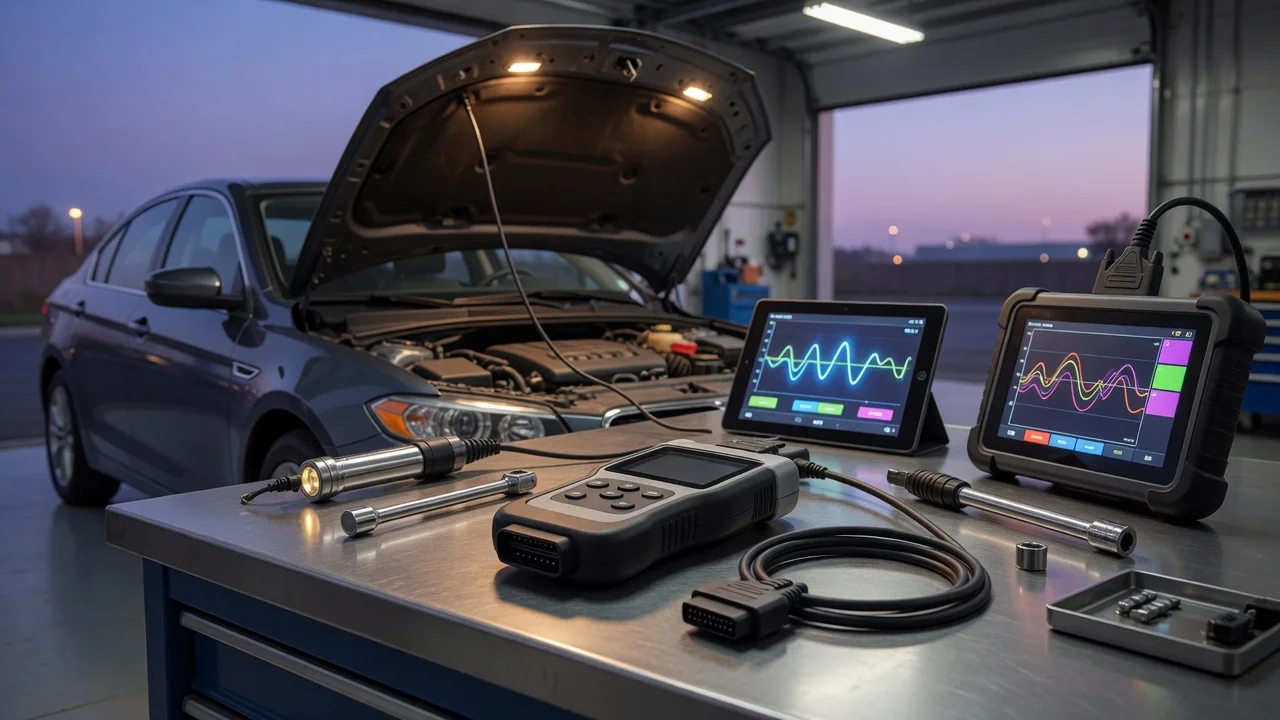
Start with the intended use
Before comparing Foxwell scanner models, define where and how you will use the tool. A home user checking an engine light on one vehicle has different needs from a mobile mechanic who works across several makes, or a workshop that needs stored diagnostic reports, live data, and service functions. Write down the vehicles you expect to connect to, the operating system or app you are willing to use, and whether the scanner must work without a phone or computer nearby.
Also note the connection path you can support. Some devices connect directly to the vehicle's OBD port and display results on their own screen. Others need a phone, tablet, or laptop running a companion application. Decide whether you need a standalone handheld tool, a cable-driven setup, or a Bluetooth adapter that works with an app. The result should be a short description of the intended environment, such as a home garage, a service van, or a fixed workshop bay with a Windows computer.
Features that matter
Focus on capabilities that change what you can actually do with the scanner. Basic OBD functions usually include reading and clearing diagnostic trouble codes, viewing freeze frame data, and checking emissions-related monitors. More advanced models may add live sensor data, graphing, bidirectional control, adaptation, service reset functions, battery registration, ABS or airbag module access, and coding support. Treat these specifications as feature lists, not as a measured quality score.
Software coverage and updates can vary by model and by vehicle make. A scanner may list support for many systems while offering deeper functions for certain manufacturers and only generic OBD access for others. If you need a specific procedure, such as resetting an oil service indicator or performing an electronic parking brake service, confirm that the function is listed for the vehicle family you intend to work on. You should also consider how updates are delivered and whether they require an account, a subscription, or a Windows-based update tool.
Check compatibility
Compatibility is not just about the vehicle. Check the operating system and app requirements for the scanner you are considering. Some Foxwell tools run entirely on the device, while others require a phone or computer application available only on specific platforms. If the scanner uses a Bluetooth connection, confirm that the phone, tablet, or adapter supports the required Bluetooth version and that the companion app is available for your operating system.
Connector and power requirements matter too. Most passenger cars and light trucks use a standard OBD-II connector, but adapters may be needed for older vehicles, heavy-duty equipment, or non-standard diagnostic sockets. Check whether the scanner draws power from the vehicle connector, uses a rechargeable battery, or requires a separate power source. Also confirm the supported file formats if you plan to export reports, record data, or print results from a computer.
Build a shortlist
Create a requirements checklist before comparing models. List the vehicle makes and model years, the systems you need to access, the required functions such as reading codes or performing service resets, the preferred connection method, and the operating system you can use. Then mark each candidate scanner as meeting or not meeting each requirement.
A useful shortlist separates must-have features from optional extras. Start with the scanner that meets the essential requirements for your vehicles and connection environment. Then consider extras such as cloud reporting, multilingual menus, larger screens, or bundled adapters only if they add practical value to your daily workflow. Avoid ranking by price or making performance claims that are not supported by the listed specifications. The goal is a short selection of models that match your actual diagnostic work.