ChargePoint Free Charging: How to Find and Use No-Cost Stations
The Short Answer
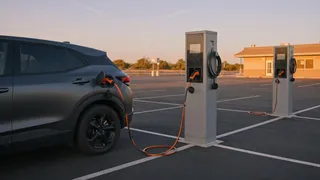
ChargePoint does not offer free charging across its whole network. ChargePoint provides the charging hardware, software and app, but each station's owner, called the host, sets the price. Some hosts, such as certain retailers, hotels, municipalities and employers, choose to make their stations free. To use one, you find a station listed as free and start a session the same way you would at a paid station, usually through the ChargePoint app or a ChargePoint card.
Two conditions can change the answer. First, a free station may be restricted to a specific group, such as employees, residents or customers, so it may not accept your session even though it shows no price. Second, free energy does not always mean a free visit. A host can add idle fees after charging ends, set time limits, or the parking lot itself may charge for parking.
Key Terms
Host: the business or organization that owns a ChargePoint station and decides its pricing, access rules and time limits. Session: one charging event, from the moment the station authorizes you until you stop charging and unplug. Authentication: how the station confirms who you are before releasing power, typically by tapping a ChargePoint card or starting the session in the app. Idle fee: a charge some hosts apply when a vehicle stays plugged in after it has finished charging or after a set period. Restricted access: a setting that limits a station to approved drivers, such as a company's staff.
How to Use Free ChargePoint Charging, Step by Step
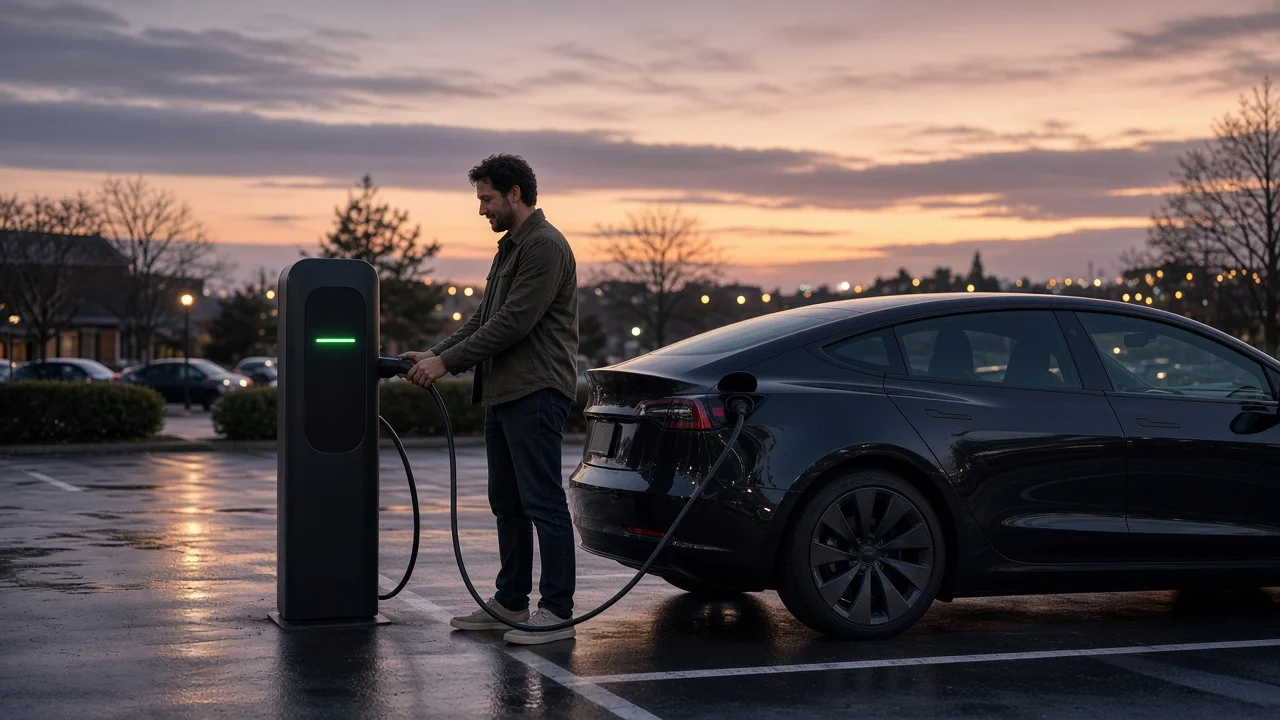
1) Create a ChargePoint account in the official ChargePoint app and sign in. Whether a payment method is required for free-only use was not confirmed in the available information, so follow the app's prompts during setup. 2) Open the map and look for stations whose price is shown as free. The app offers filters for station details; use the pricing filter if available, or tap individual stations to read their pricing. 3) Open the station's detail page and check for access restrictions, time limits, idle fees and any parking charges noted by the host. 4) Confirm the connector matches your vehicle. Most ChargePoint stations in the US are Level 2 with the J1772 connector, while DC fast chargers use other connector types; your vehicle's equipment determines what you can plug into. 5) At the station, start the session by tapping your ChargePoint card on the reader or by selecting the station in the app and starting charging there. 6) Plug in and wait for the station and vehicle to show that charging has begun.
How to Verify the Session Was Free
While charging, check the active session screen in the app, which shows the session's status and running cost. After you unplug, review the session record in your account history. A free session should show no energy charge. If any fee appears, compare it with the pricing listed for that station, since idle or time-based fees can apply even when energy is free.
To avoid idle fees, move your vehicle once charging is complete or when the host's time limit is reached. The app can notify you when your session ends, which helps if you are away from the vehicle.
Limits and Information Gaps
No confirmed figures were available for how many ChargePoint stations are free, which locations offer free charging, or what idle fees specific hosts charge. Pricing is set and changed by each host, so a station that was free before may not be free now. Always rely on the current price shown in the app at the time you plug in, and contact ChargePoint driver support through the app if a session is billed differently from the listed price.