Apple CarPlay Will Not Connect: Uconnect and General Troubleshooting
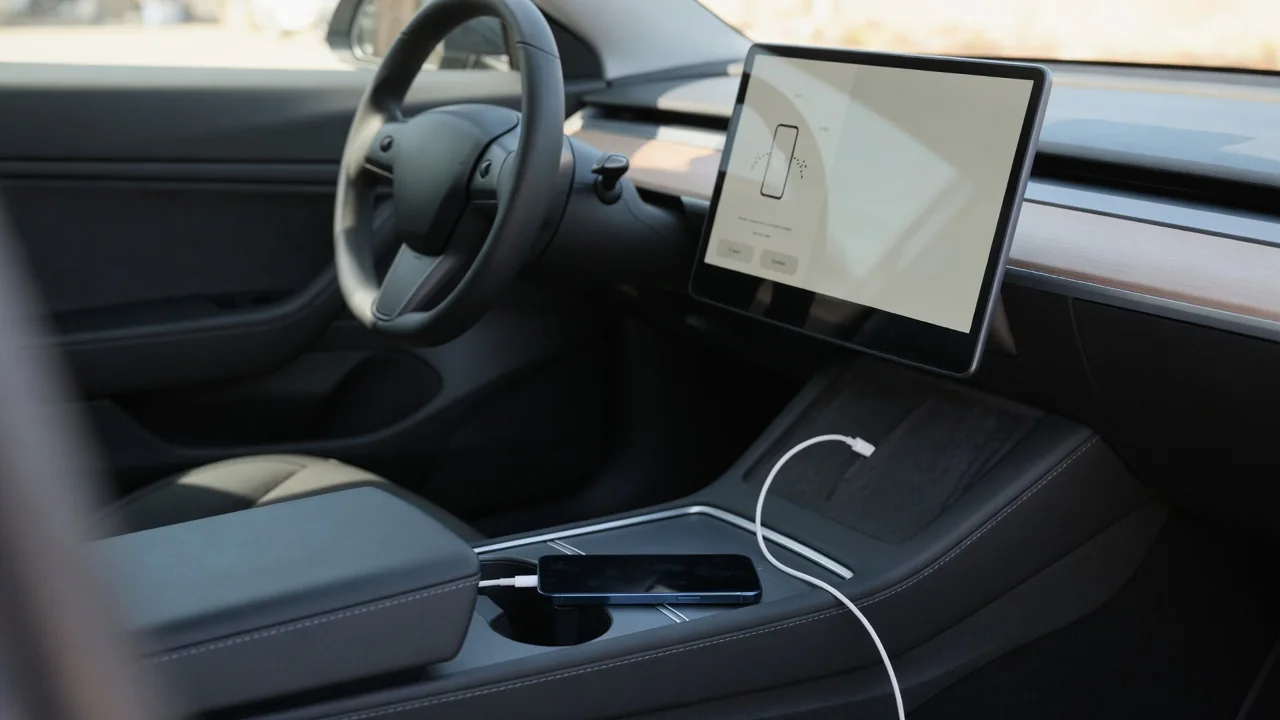
When Uconnect Apple CarPlay is not working, the cause is usually something small: a cable that only charges, a setting switched off on the iPhone, or software that needs attention on one side or the other. This guide walks through how the connection works, what to check on the phone and the vehicle, and when the problem belongs with a dealer or technician.
How an Apple CarPlay Connection Works Between iPhone and Car
CarPlay reaches the dashboard in one of two ways. Wired CarPlay runs through a USB cable that carries data as well as power, while wireless CarPlay uses Bluetooth to start the handshake and then moves the session to a Wi-Fi link between the phone and the head unit. Not every vehicle or trim offers both, and some offer neither, so confirm what yours supports in the owner's manual or with a dealer. For a session to start, the connection must carry data, the iPhone must allow CarPlay, the head unit must have the feature enabled, and both sides must be able to communicate.
Before changing anything, name the exact symptom. No prompt at all is different from a phone that charges with no CarPlay screen, and both differ from a session that starts and then drops, or audio that plays with no display. Each pattern narrows the search in its own way. Most failures to connect trace back to the phone, the cable, a setting or software, yet the symptom alone cannot confirm which one is responsible, so treat it as a starting clue and test one variable at a time.
Apple CarPlay Not Working on Uconnect: First Checks
Start by confirming that your Uconnect version, vehicle and model year actually include Apple CarPlay, and whether it works wired, wireless or both. The answer differs across systems and trims, so rely on the owner's manual or a dealer instead of assuming. Next, look at the USB ports. Some vehicles have ports intended only for charging, and plugging into one of those will power the phone without ever launching Uconnect phone projection. The manual or the markings beside the port should identify which one handles data.
Then look through the Uconnect settings for a phone projection or CarPlay option that may have been turned off; the wording and location vary by system version. If the feature is enabled, delete the iPhone from the Uconnect phone list, pair it again, and note whether the behavior changes. A second compatible iPhone is a valuable test as well. If that phone connects normally with the same cable and port, the problem more likely sits with the original phone than with the head unit.
iPhone Settings That Can Block CarPlay
CarPlay depends on Siri, so if Siri has been turned off, the car may never appear as an option. Screen Time is another quiet blocker: within its content and privacy restrictions, CarPlay can be disallowed among the permitted apps, which stops it from appearing no matter what the vehicle does. Once both are confirmed, open the CarPlay settings on the iPhone, select the vehicle, and choose to forget this car. Connecting again afterward rebuilds the relationship from scratch and clears a stored profile that may have become corrupted.
Wireless CarPlay needs both Bluetooth and Wi-Fi switched on, because the two radios share the work. A phone already tied to a personal hotspot, a portable router or another vehicle parked nearby can interfere with that link, so disconnect those during testing. Keep the phone unlocked the first time it connects, since the trust or allow prompt must be accepted on screen before a session can begin, and a locked phone can hide it. Installing the current iOS update is also worthwhile, as phone software changes can affect how projection behaves.
Cable, Adapter and USB Port Problems
A USB cable contains separate conductors for power and data, which is why a worn or damaged one can keep charging the phone long after the data lines have failed. Some inexpensive cables are built for charging only and never carried data in the first place. Swap in a known-good, quality Lightning or USB-C data cable, ideally one that works for CarPlay in another vehicle. While testing, remove hubs, splitters, extension cables and adapters, since every extra connection is another place for the signal to be interrupted.
Pocket lint packed into the iPhone port can stop the connector from seating fully, leaving a link that charges but drops data. Look into the phone port and the car's USB data port with a flashlight for lint or debris, and never probe either one with a pin, paper clip or other metal object, which can bend contacts or cause a short. If the vehicle's port feels loose, wobbles with the plug inserted, or shows visible damage, have it inspected professionally instead of attempting a repair yourself.
Intermittent Disconnects and Partial CarPlay Function
When CarPlay disconnects intermittently, the timing carries information. Drops over bumps suggest a physical connection issue such as a tired cable or loose port, though they do not say which component is at fault. Drops while the phone is hot may reflect the phone limiting its own activity to manage temperature, particularly when it is charging in direct sun. A session lost after a phone call hints at a handoff problem between Bluetooth and the projection link. Each pattern suggests a direction to investigate without proving a cause.
A simple log helps: note when each drop happened, which phone and cable were in use, and whether the session was wired or wireless. Partial function deserves separate attention, because audio playing while the CarPlay screen stays blank, or a display with no sound, means the connection exists and something else is wrong, perhaps an audio source selection or a software fault. Intermittent faults are hard to pin down from symptoms alone, and one successful reconnect does not prove the problem is fixed, so keep observing over several drives.
Infotainment Software, Restarts and What Not to Do
Head unit software manages the projection handshake, so an outdated or glitchy version can affect CarPlay even when the phone and cable are fine. Any infotainment software update should come only through official manufacturer or dealer channels, since files from unofficial sources can damage the system. A head unit restart may clear a temporary fault, but perform it only as your owner's manual describes. Button combinations passed around from unverified sources may not apply to your Uconnect version and can produce results you did not intend.
Pulling fuses or disconnecting the battery to force a reset is a poor idea for a do-it-yourself fix. Modern vehicles link many control modules together, and cutting power can erase stored settings or disturb systems that have nothing to do with the radio, so leave that step to a professional. If the vehicle has an aftermarket head unit or modified wiring, expect it to behave differently from a factory system. In that case, the installer who fitted the equipment is usually the right person to check it.
When to Have a Dealer or Technician Diagnose CarPlay
Some signs call for professional testing. If no compatible phone or known-good cable will connect, if the USB port does not detect a device at all, if the screen freezes or reboots, or if other infotainment features such as radio, navigation or Bluetooth calling also misbehave, the fault probably lies beyond the phone. Bring useful details to the appointment: the phone model and iOS version, the cable used, the exact symptoms, when they occur, and every step already tried. That history spares the technician from repeating your work during dealer diagnosis.
Ask the dealer whether any software updates or warranty coverage apply to your specific vehicle, without assuming that a known fix exists. Coverage and available updates depend on the model, the year and the system installed, so only a check against your vehicle can answer the question. Finally, keep all of this work off the road. Changing settings, pairing phones and swapping cables take attention away from driving, so troubleshoot only while safely parked and leave the phone alone once the vehicle is moving.